Apple iPad Camera Connection Kit

The Apple iPad Camera Connection Kit or commonly referred to as the CCK for short in online forums consists of two dongles. It was launched shortly after the 1st iPad was introduced by Steve Jobs in 2010. It originally retailed for USD 29.

The box is quite small and as it was just purchased shortly after the iPad 3 or “new iPad” as officially named by Apple was launched, the box still lists this product as compatible with iPad 1 and iPad 2. However, the iPad Camera Connection Kit does work with the iPad 3.

Inside the box are the two dongles, instructions and a warranty booklet. One dongle has a USB port for connecting to cameras through a USB cable. The other dongle accepts SD memory cards otherwise known as Secured Digital. It is one of the most commonly used type of memory cards in digital cameras.

However, do note that although it supports the higher capacity SDHC (Secured Digital High Capacity) standard, it does not work with the latest SDXC memory cards. If your memory card is 32 gb or less than it should be up to SDHC. Once the capacity is more than 32 gb it will not work with the iPad Camera Connection Kit.

So why would anyone buy this product? Well, the iPad Camera Connection Kit means traveling with less weight on short holidays. Instead of lugging around a laptop weighing around 3kg excluding the other accessories like the power supply, all that is needed is an iPad and the SD card dongle.

Some would say there are lighter notebooks like the MacBook Air which for the 13 inch models even comes built in with an SD card reader reducing the need for additional cables or adaptors which may be easily lost. It is not that much heavier at 1.35 kg but is a lot more powerful and capable than the iPad. But it also runs on flash memory which comes with only 128gb as standard for the base 13 inch model. Sure it has double the storage of a 64gb iPad but it’s also double the weight and bigger in size. If you consider the MacBook Air 11 inch, it also requires an additional USB SD card reader and comes with only 64gb of storage for the base model.

Just for interest, the iPad Camera Connection Kit originally allowed users to plug in many external USB devices such as keyboards and microphones although it was all unofficial and not supported by Apple. It also allowed external drives for storage through jailbreaking the device.  They stopped all this from happening with the introduction of iOS 4.2 by limiting the power output to work with high power devices.

Overall I think it’s a useful accessory for short trips to backup photos. The process is quite seamless as the photo app launches once the dongle is plugged in with the SD card. There is the ability to import all photos or tap to select specific photos to import.
Apple AA Battery Charger

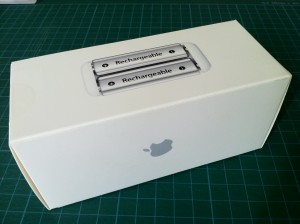
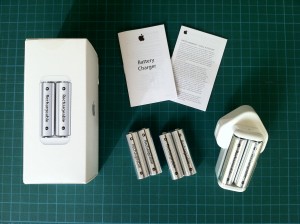
What’s in the box?

  • Charger for two AA size batteries.
  • Appropriate AC plug for the country where the charger was purchased.
  • Six 1.2v 1900mAh rechargeable NiMH (Nickel Metal Hydride) AA size batteries.
  • Quick start user guide.
  • Warranty information.

According to the user guide, the charger requires 5 hours to fully charge a pair of AA batteries. There is a small LED light at the top of the charger in amber when charging which turns Green when fully charged much like the charger for Apple portables such as the iBooks, PowerBooks, MacBooks and MacBook Pros.

The light turns off automatically after 6 hours to conserve energy. If it flashes in amber when batteries are inserted, it could mean an unsupported battery type, faulty batteries or just not seated properly.

The AC plug is similar to those used for Apple portables and older iPod/ iPhone chargers. Thus this AA battery charger is compatible with the Apple World Travel Adapter kit making it easy for use during holidays abroad.

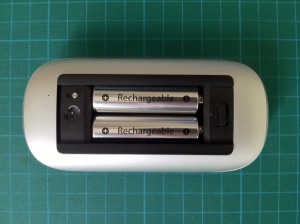
Most batteries come in packs of two or four but Apple chose to bundle six with the battery charger. Two went into a magic mouse while the next pair was used to power a magic trackpad. The last pair could be kept charged ready for use or for the newer apple wireless keyboards that use two batteries instead of three.

The batteries came fully charged and ready to use and should hold most of their charge for more than a year. It sounds similar to the Sanyo Eneloop batteries which I did consider buying except that the prices were similar to the Apple battery charger where I live.

I would love to buy more rechargeable batteries for use in other devices such as camera flash, torch lights and more but unfortunately Apple does not sell the AA rechargeable batteries on it’s own.


Dell 2709w 27 inch LCD Monitor

After getting  a new 2010 unibody Mac Mini Server, it was time to look for an LCD monitor.

Having a matching Apple LED or Cinema Display would have been nice. The 24inch LED display has been discontinued as of 26th July 2010 and is available while stocks last. So has the monstor 30inch Cinema Display. Apple currently only offers a 27in LED display.

Due to a limited budget with the purchase of the Mac Mini, a Dell LCD monitor was considered. The are many rave reviews of the Ultrasharp U2410 24 inch LCD display which uses an IPS panel. There is also a cheaper 23 inch model U2311H.

When about to place the order for the 23 inch display, a good deal on the bigger 27inch 2009 model 2709w was found online.

With a resolution of 1920 x 1200, it is similar to the 24 inch U2410 and lower than the newer U2711 of 2560 x 1440. However, it is still higher than full HD resolution of 1920×1080 pixals.

The plus point of this LCD monitor over the 23 inch are the plethora of ports. Almost any vintage of computers that are in use can be hooked up to this display from VGA, DVI, HDMI to DisplayPort.

It also includes a useful media card reader on the left side supporting CompactFlash, Memory Stick, Memory Stick Pro, Memory Stick Duo, Secure Digital (SD), MultiMedia Card (MMC), SmartMedia and xD Picture Card. Located below this are two usb ports perfect for plugging in flash drives and other peripherals.

After using it for a month, I have to say there are no regrets. The extra screen real estate allows multiple documents, webpages and pdfs to be open at the same time and is a huge step up from a 13 inch MacBook. As my desk is quite deep, the similar resolution of this 27 inch to a 24 inch makes it easy for my eyes during extended periods of use.

Free Online Backup Services Compared

It is quite common for people to own multiple devices and it is difficult to ensure files are properly syncronised and backed up. A possible scenario is trying to keep data accessed easily across a desktop at home, personal laptop or netbook, office workstation and perhaps a smart phone or work issued laptop.

So for those who don’t want to read my random babbling and frustrations, scroll down to the end to see the table of various online backup services compared.

For me, I actively use a MacBook, iPhone and Dell desktop running windows XP at work. That’s excluding the many other Macs around used casually for internet surfing, iTunes streaming and fiddling with.

In the last few years, I’ve been upgrading the hard drives approximately every 1 to 2 years and each time, the capacity increases about double. The MacBook came with 80 gb which was replaced with a 250 gb and now 500 gb hard drive.

With each digital camera upgrade, my photo file sizes have increased as a result of a greater number of pixels quickly filling up all that space.

So it seems like after all the increase in storage, I’m still running out of space. While I am trying to figure out a better backup system, from an external drive running time machine backups from the Macs running leopard and cloning for the older Macs, I came across dropbox.com.

It’s a free service with options to pay for more storage space beyond the free 2 gb. A software is installed on the most often used computers. Any files stored in a special folder will be automatically synced to the dropbox.com server and accessible by the other computers when online. It can also be accessed from any computer with an internet access though their website.

It’s not going to backup my entire almost full 500 gb hard drive but it’ll be a useful tool to keep track of my work related files. As I often lose my flash drives, I starting emailing files back and forth which was a little clumsy. I eventually used the Air Sharing app on my iPhone by Avatron. It allows easy access from my office windows box to copy files to my iPhone and once home onto my MacBook.

However, this process results in confusing versions and files scattered everywhere. So the idea of using this service to keep my often used files backed up and in sync was great. Moreover, there will be no possibility of losing data and flash drives which could have great implications for sensitive data. For example projects in progress that have yet to be realised or private and confidential client data.

After a bit of googling, here’s the summary of some of the available free online storage.

I have not tried all the different products listed above so if you’ve tried any of the services, please leave some comments and share your views.

dropbox.com box.net mozy.com humyo.com wuala.com zumodrive.com spideroak.com
Free Storage 2 gb 1 gb 2 gb 5 + 5 gb media 1 gb 1 gb 2 gb
Size Limits 25 mb files
Windows Yes Yes Yes Yes Yes Yes
Mac Yes Yes Yes Yes Yes
Linux Yes Yes Yes
iPhone Yes Yes Yes
Web access Yes Yes Yes Yes Yes Yes
File Versioning Yes Yes Yes Yes
Undelete Yes (30 Days) Yes Yes Yes
Others Grid network iTunes, iPhoto integration

Harman Kardon Soundsticks I (USB)

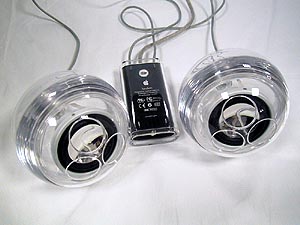
After some years in storage, we found that the original USB apple speakers that came with the G4 Cube was no longer working properly. The black rubber surrounding the chrome speaker cone was starting to disintegrate.

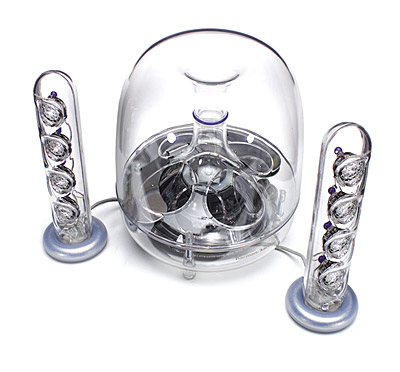
The Harman Kardon Soundsticks have always been a visually appealing set of speakers. The shiny clear acrylic speakers with a jelly fish like sub woofer have always attracted me.

The original speakers that came with the G4 Cube was designed by Harman Kardon and so both are of a similar design. As the G4 Cube does not come with a built in audio port, finding replacement speakers will be a challange.

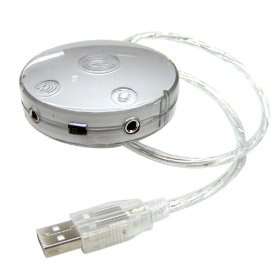
Griffin Technologies introduced one of the first products to address this issue. It is called the iMic and connects to any Macintosh via the USB port. A microphone and headphone port allows users to connect external speakers and audio in.


Even with this device or something similar, the rest of the speakers available probably will not match the all clear transparent minimalist look of the G4 Cube, Apple Studio Display and Apple Pro mouse & keyboard.

The prices of the Harman Kardon Soundsticks have remained pretty high and so we have never bought it. The G4 Cube is also not in active service hence it would seem a lot of money to spend on speakers for it.

That was untill early this morning while I was checking my email and dropped by my favourite mac forums. Someone had a brand new sealed in the box Harman Kardon Soundsticks I for sale. At a price of almost half the cost of a new Harman Kardon Soundsticks II, a quick text message to the seller sealed the deal. I guess the saying is right, early bird catches the worm.

The difference between the version I and II of the Harman Kardon Soundsticks is a different connection. The original version used USB and can not be connected to an iPod or other audio device limiting it’s use to a computer. The second version is more flexible and uses a common audio jack.

So here it is, the unboxing of a pair of brand new Harman Kardon Soundsticks speakers at least 5 years young.

Time Machine Backups

In the past before OS X Leopard 10.5 was launched with time machine backups, we used to clone our hard drives with CCC or carbon copy cloner.

It was straight forward as easy, just plug in an external hard drive and the software could be set to automatically run. While it does provide a backup should the laptop go missing or damaged, it is not considered a proper backup solution as there is no way to retrieve accidentally deleted files.

Having upgraded to OS X Leopard 10.5, we purchased a new external maxtor 500gb hard drive as a time machine backup drive. Without reading the documentation and how time machine works, I just plugged in the external backup drive.

Apple products always emphasize ease of use and this is no different. I was immediately prompted if I wanted to use this external hard drive as a time machine backup. After clicking okay, the backup started.

When the backup was completed, the hard drive was unplugged from the MacBook Pro and plugged into the MacBook. The process was similarly simple and all went well.

Since all the macs are on the same wireless network, I decided to try and mount the backup drive still connected to the MacBook on the MacBook Pro.

The surprise here was that when I tried to run the time machine backup, an error message indicated that the file system was not Mac OS Extended Journaled. I disconnected the external backup hard drive from the MacBook and connected it to the MacBook Pro directly and time machine worked.

I guess time machine backs up differently when connecting the hard disk directly or through wifi. So before you decide to start using time machine on a few macs, remember this and I hope it helps you avoid repeating the lengthy backup process especially after accumulating years of digital photos and music.

Moving to a new home

At present, all the Macs are scattered everyone. A few of them are displayed on a shelf while the rest are tucked in the store room and around the house.

The metal framing of the shelf was bought from ikea and the timber shelves salvaged from a shop that closed down.

As we are moving to a new place, it’s time to create a nicer display and work area. New white laminated timber shelves have been ordered and there’s now a small room approximately 1.5m x 2.8m to display the collection. 

(Photo Coming Soon…)

Behind the frosted glass is the kitchen. Initially we wanted to have it as clear glass so the Macs were viewed from the kitchen. But knowing that it might get pretty messy at times with Macs taken apart for repairs we decided to keep the glass frosted so that all the mess is contained within the room.

The frost is just a sticker and we intend to remove the frosted sticker over the little window on the right to place an LCD monitor for viewing recipes and catching up on the news or weather from the kitchen. Now if only I could find a cheap Apple Cinema Display.

(Photo Coming Soon…)

While the renovation works are going on, the Macs have been stored in the guest room. The wardrobe is filled with Macs. There’s the two Twentieth Anniversary Macintosh.

Apple Pro Optical Mouse

While looking for a keyboard and mouse to test the newly acquired Macintosh SE/30, I came across a plastic bag filled with apple pro mouse. I bought these 7 spoilt apple pro mouse from ebay last year. 5 of them are the original first generation black color ones while the other 2 are white in color. 

When these mice were released in 2000, the design was just so beautiful. An elegant elliptical shape made of clear acrylic with a translucent black inner piece that emitted a little glow of red through the apple logo.

One white mice has been nursed back to health exhibiting a healthy red glow. It has since found a new home. After repairing the first mouse, the rest have been stored in a plastic bag on the shelf. 

A quick search on google revealed a mod turning the mouse into a belt buckle. Another person made a soap dish. My initial ideas were the following:

A. Remove the guts and replace with a generic wireless mouse internals.

B. Turn it into a torch light similar to those ‘pop’ lights.

C. Make a frame to hold all 7 mice to create a bedside lamp powered through a usb hub.

D. Modify the transparent shell to fit a mighty mouse

It has been awhile but maybe it’s time to revive this Mac Mod. I am inclined to go with option D to make a transparent mighty mouse. Anyone have a cheap wired or wireless mighty mouse for sale?  

Using a Macintosh to Share Wireless Internet

My wireless router was faulty and it was the middle of the month. Pay day was still two weeks away. Instead of buying a new airport base station, I decided to use an iBook G3 clamshell to share the internet connection.

Almost all new macs come with an airport card. Even older hardware like G3 iBooks and iMacs are able to accept the original 802.11b airport card with a transfer speed of 11 mbps. Most broadband connections today average 2 mbps to 12 mbps. There are providers offering up to 100mbps but home users will never fully utilise it.

I tried to do a clean install of OS X Panther 10.3 but the CD-Rom drive was a little fussy and refused to read the disk properly. Not willing to give up, I decided to push on. The iBook G3 I had was the non firewire model. Thus it was impossible to reinstall the OS from another mac.  I took the iBook apart to extract the hard drive. A copy of OS X Tiger 10.4 was installed and the hard drive replaced.

After putting everything back together, the iBook booted up with that familiar sounding chime. In system preferences, there is an icon for sharing. Once in that preference pane, select share my connection from ethernet to airport. Click on the options to create a name for the wireless network and set a password. Next, start the interet sharing service and you will be surfing online from all the other computers around the house or office.

The iBook may be old but it is still serving a useful purpose acting as a wireless base station.