In 1983, Apple released the Lisa computer system. It ran on it’s own operating system called the Lisa OS. Fast forward to 2011 and Apple is preparing OS X 10.7 Lion for release.
So what else is new in OS X Lion? Marketing materials tout a new feature called Resume that allows applications to resume as it were when you last closed it. Another feature is Auto Save which automatically saves your work solving those annoying situations where a power failure causes data loss on open files.
These features are actually available 28 years ago with Lisa OS. Pressing the power button does not turn off the electricity to the Lisa. It instead sends a signal to the Lisa OS to save and close all applications and position of the desktop before going into a low power mode much like sleep mode on modern day Macs. Turning the computer on again, users are greeted with the same screen just as where they had left it.
It’s interesting how far technology has seemingly progressed. Monochrome screen to millions of colours, megahertz to gigahertz, kilobytes to terabytes and yet fuctionality remains largely unchanged.
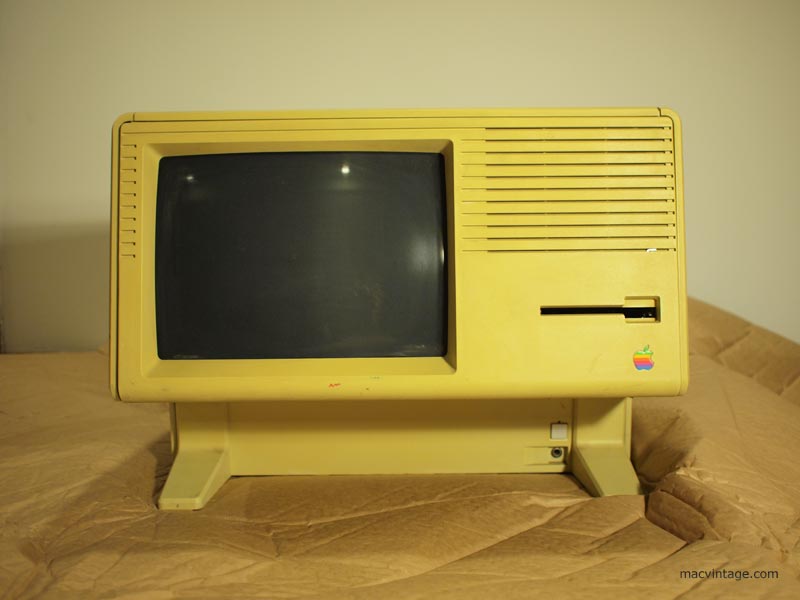
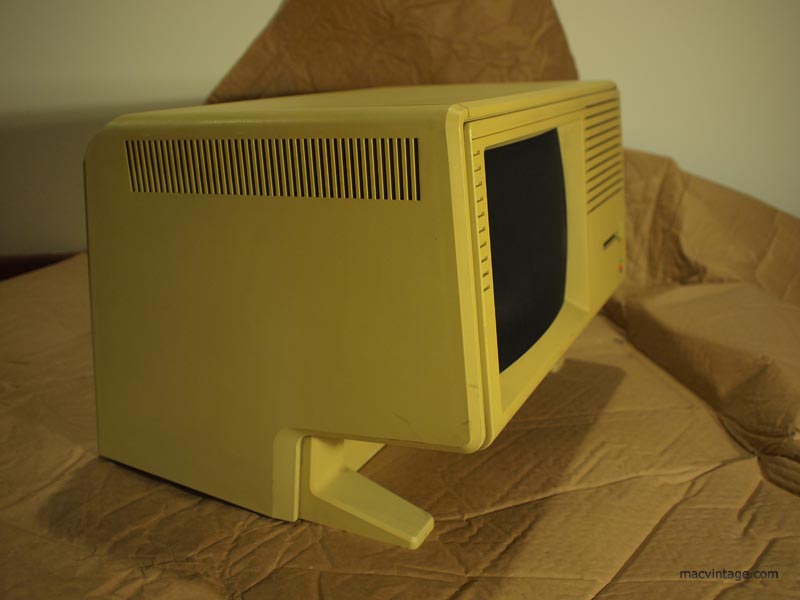
As promised yesterday, here are the pictures of the Apple Lisa.
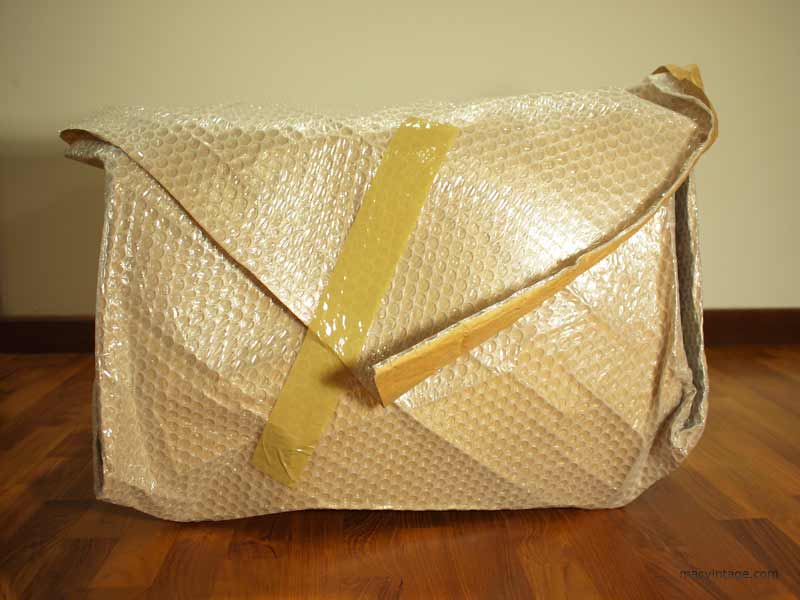
Bubble wrappedFront View
When I purchased it from eBay, the seller posted under item description as faulty for it could not be turned on. Due to the scarcity of the Apple Lisa outside of USA, a bidding war broke out minutes before the auction ended.
Fast forward two years later and here it was. After removing the bubble wrap, I plugged the power cord in and crossed my fingers. Hit the little bottom on the bottom right and to my surprise, it actually lighted up with the sound of a hard disk whirring to life in the background.
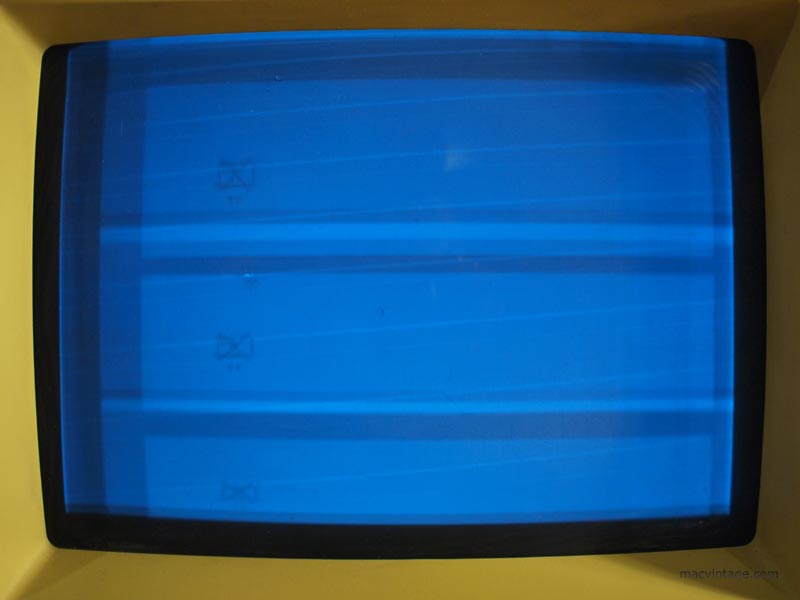
HelloFuzzy Screen
After adjusting the screen, the image was still split in three and I could not make out what was on the screen. Does anyone have any idea if it’s an error message or part of the boot up. One thing to note, I did not plug in the keyboard or mouse at this point.
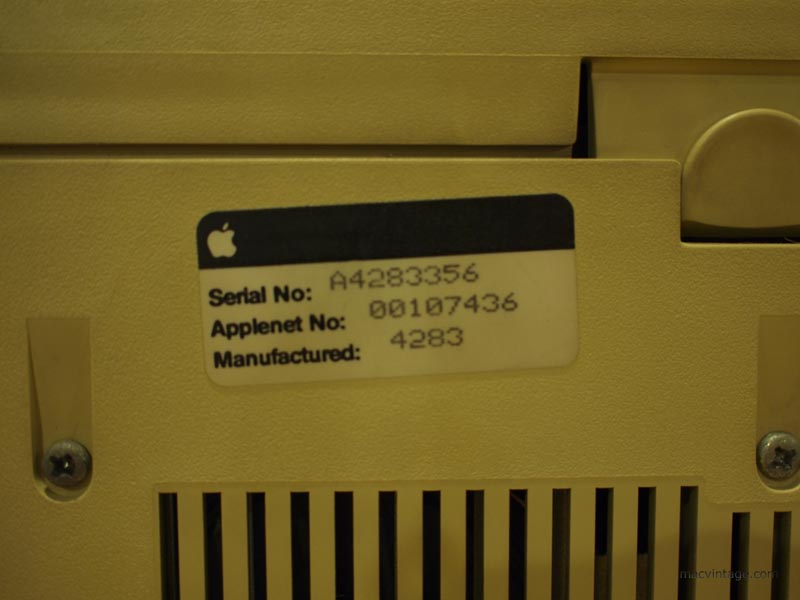
Serial NumberModel Number
The serial and model number tags are located beneath the computer. I tried to do a search online but could not find out much information about this Apple Lisa. So if anyone knows how to decode the serial number to find out the manufacture date and other facts, do leave a comment.
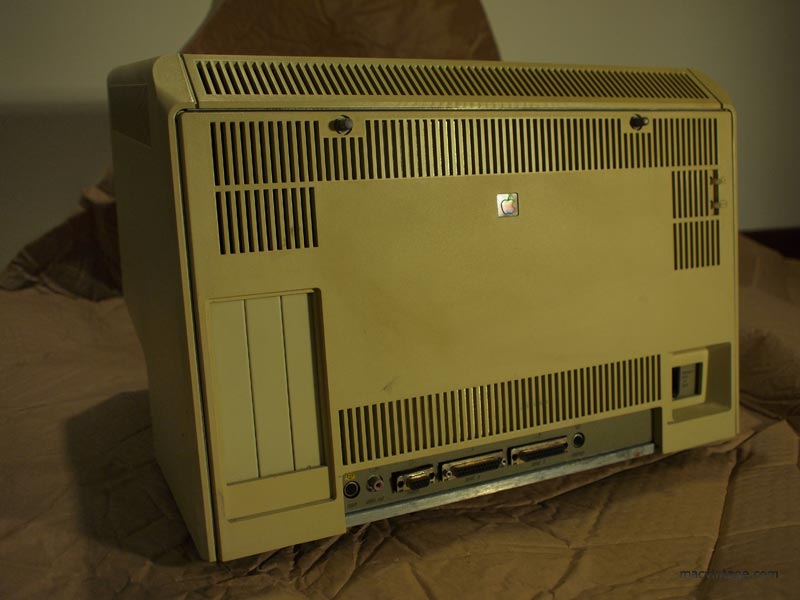
Side ProfileRear Access Panel
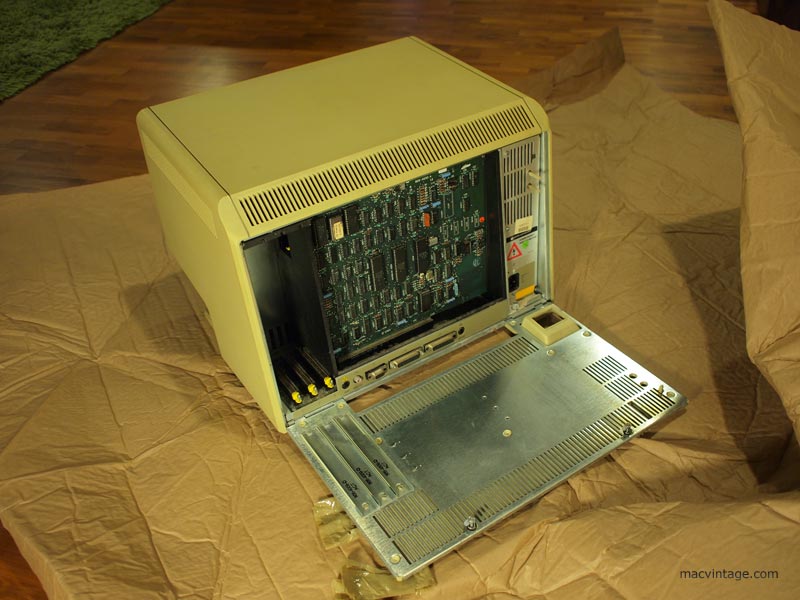
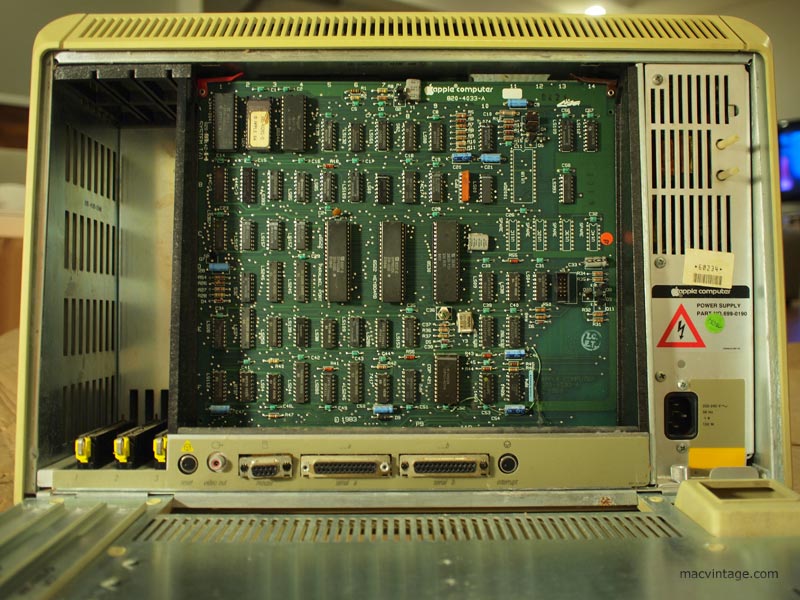
Near the top of the rear access panel are two metal knobs to access the innards of the Apple Lisa. There are three expansion slots on the left but none are installed for this particular machine. Interestingly, there is a port for video out which is the left rectangular connector.
Open SesameInside the Apple Lisa
There were three variations of the Apple Lisa sold. The first was the Apple Lisa 1 which came with twin ‘twiggy’ floppy drives. These are really expensive as it is very rare for Apple provided free upgrades to the Apple Lisa 2. When paying more than $10,000 for one of these, you can be sure most people would have sent their Apple Lisa 1 to be upgraded to a Lisa 2.
Apple Lisa 2 has only one 3.5 inch 400k floppy drive. Towards the end of the production run, the Lisa 2 was marketed as the Macintosh XL and could run system 6 through emulation.
Any Apple Lisa technicians out there? I guess the first step is to fine tune the screen to see exactly what’s it trying to display. Perhaps there’s a way to plug in an external display through the rear video port? Any tips or help will be much appreciated.
Yesterday I received a call saying the Apple Lisa has arrived and delivered by the shipping company.
2 years ago, I bought this Apple Lisa on eBay and it has been sitting in storage. The cost of shipping it back was too expensive and so it was with someone I knew in Sydney.
Approximately 2 months ago, someone was relocating and shipping a lot of stuff back. Through the generosity of this person, the Apple Lisa managed to sneak a ride back.
I will be picking the Apple Lisa up tonight. Will post some pictures later.
Two years ago, an Apple Lisa 2 that could not be powered on was listed on eBay.
As it was located in Sydney and not halfway across the globe in USA, a frantic bidding war broke out during the last few minutes and we won the auction for the Apple Lisa 2.
The seller dropped off the Apple Lisa 2 with someone I knew in Sydney to save on the shipping cost. It has been sitting wrapped up in storage for the last 2 years until today where it was packed and awaiting the freight company to pick it up.
Can’t wait to finally see it after such a long wait.
At present, all the Macs are scattered everyone. A few of them are displayed on a shelf while the rest are tucked in the store room and around the house.
The metal framing of the shelf was bought from ikea and the timber shelves salvaged from a shop that closed down.
As we are moving to a new place, it’s time to create a nicer display and work area. New white laminated timber shelves have been ordered and there’s now a small room approximately 1.5m x 2.8m to display the collection.
(Photo Coming Soon…)
Behind the frosted glass is the kitchen. Initially we wanted to have it as clear glass so the Macs were viewed from the kitchen. But knowing that it might get pretty messy at times with Macs taken apart for repairs we decided to keep the glass frosted so that all the mess is contained within the room.
The frost is just a sticker and we intend to remove the frosted sticker over the little window on the right to place an LCD monitor for viewing recipes and catching up on the news or weather from the kitchen. Now if only I could find a cheap Apple Cinema Display.
(Photo Coming Soon…)
While the renovation works are going on, the Macs have been stored in the guest room. The wardrobe is filled with Macs. There’s the two Twentieth Anniversary Macintosh.
While surfing the net, I came across a new website created for owners of the 20th Anniversary Macintosh or TAM for short.
The original site can be found at tam.axon.net and is no longer maintained. This new site looks promising and there was a lot of interesting information and links that I have never seen while searching in google.
Having bought a used G4 Cube as my first mac, I was introduced straight to OS X. Using OS 9 or earlier seemed a little difficult to adjust. I have yet to get the PCI ethernet card installed in the TAM till this day.
It’s a dream to shoe horn a mac mini, 12 inch ibook or powerbook into the case of a broken TAM to run the latest OS X and bring the computer up to date. However, searching online has never revealed anyone who has successfully done it.
Finally, on appletam.ning.com was a link to a youtube video showing how someone has a touch screen OS X running TAM. This guy in Japan has successfully installed an Intel Mac Mini into a TAM.
Besides using a mac mini, would the MacBook Air be the next best candidate for such a mod? It is wafer thin making it easy to fit within the TAM. The power supply is also a lot smaller than the one from a Mac Mini.
The following guide is based on information from the now defunct tam.axon.net forums for the 20th Anniversary Macintosh. Special thanks to Philippe for providing the information.
The TAM subwoofer is held together by the ‘cap’ on the top and screws below. Removing the screws at the bottom is the easy part. The ‘cap’ has to be gently pried out or the ‘legs’ holding it down will crack easily. You will need to find a suitable item to lift the ‘cap like a wooden spatula or screw drivers wrapped with insulation tape as I have done.
1. Flip the subwoofer upside down and rest it on the table. Remove the rubber strips by carefully peeling it out. It is held by double sided tape and should be easily removed. Be careful not to pull too fast for the rubber may have hardened over the years and snap.
2. The screws will now be visible. Remove the screws and sit the subwoofer the right side up.
3. Here comes the tricky part to remove the ‘cap’. It has to be lifted up evenly or the ‘legs’ holding it will break. I have used four screw drivers to pry it loose. Place a soft cloth to cushion the screw driver or it will leave marks on the rubber part of the subwoofer. Electrical insulation tape is wrapped around the screw driver tip to prevent scratching the ‘cap’.
4. With the ‘cap’ removed, the rubber piece can now be pulled off. It is held by double sided tape and should come off with a little force. Remove the screws that are now visible.
5. A helping hand may be required to hold the base of the subwoofer while you lift the case off.
Now that the case of the subwoofer has been removed, follow our next post to solve the buzzing/ humming issue.
Many people have pointed the buzzing/ humming sound from the speakers are caused by a bad contact in the subwoofer.
Inside the subwoofer is a large connector where all the audio is routed. Overtime, the metal pins in this connector oxidise causing bad contact leading to the irritating hum.
Purchasing a new subwoofer solves the problem temporarily for in time, it will develope the same problem. After so many years, this part is no longer available from Apple and hard to come by.
Ever so often, people put up their TAM affected by the dreaded hum giving you a chance to pick up one inexpensively.
Don’t dispair if your beloved TAM is exhibiting this problem for it is not that difficult to resolve this problem by following the steps in our guide to take the subwoofer/ powersupply apart.
For people who do not have much storage space for old macintosh computers, there are alternative ways to experience older operating systems.
Computers like the Apple Lisa are a good example where it is difficult to find one in working condition. When a limited run and hardware failing over time, creating an emulator is one of the best ways to preserve it.
Check out the following emulators for various Apple related operating systems. Click on the links below to download the emulation software.
The people behind these projects are doing such a great job keeping the vintage OS alive. If we can’t get the Macintosh XL here at MacVintage.com working, the alternative is to put a Mac Mini inside the case and run the original OS through emulation.
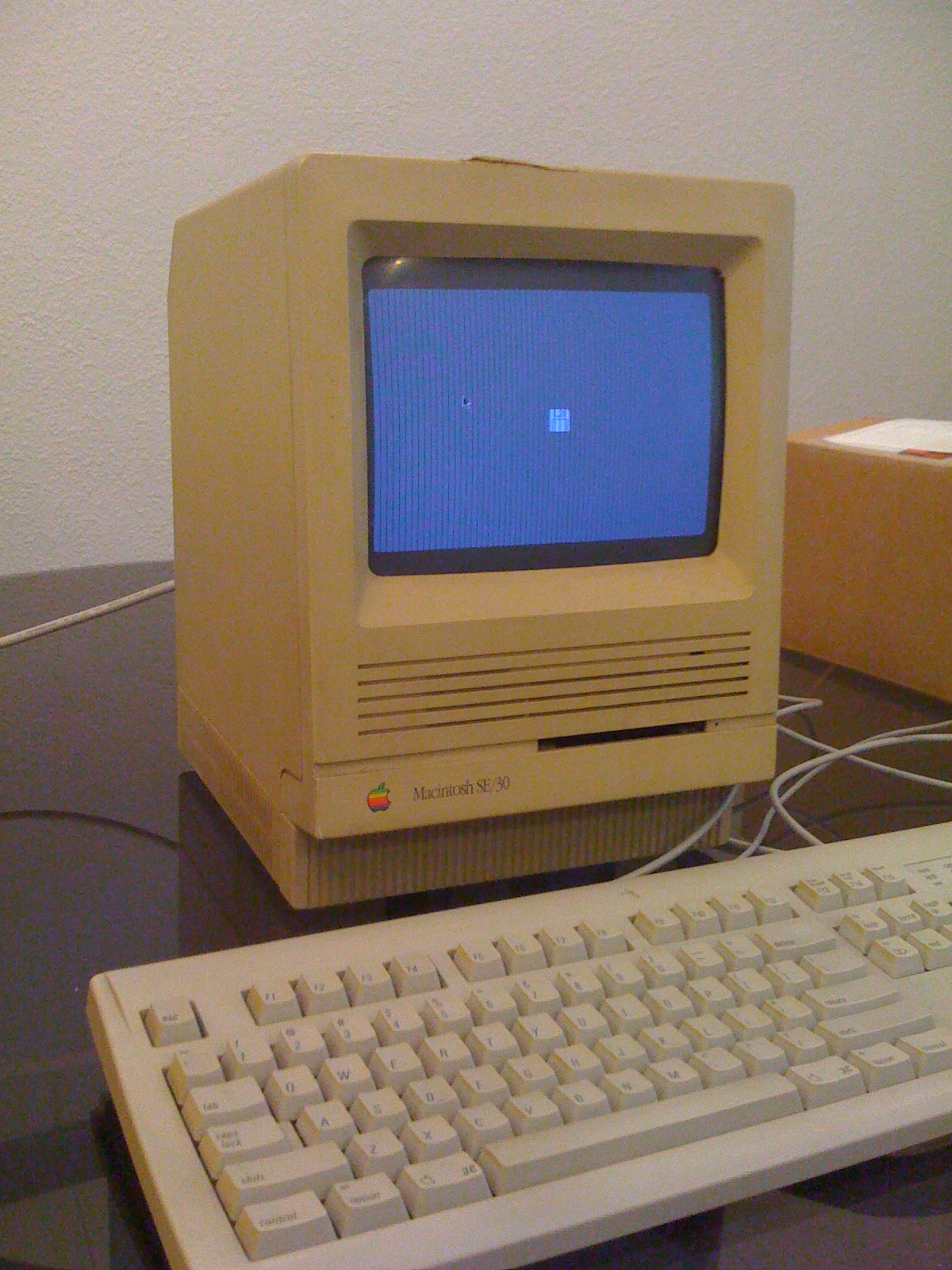
Over the weekend, I had a closer look at the SE/30. As it did not come with any mouse or keyboard, I had to use a set from my PowerMac 8500 AV. Both computers use an ADB port keyboard and mouse.
Macintosh SE/30
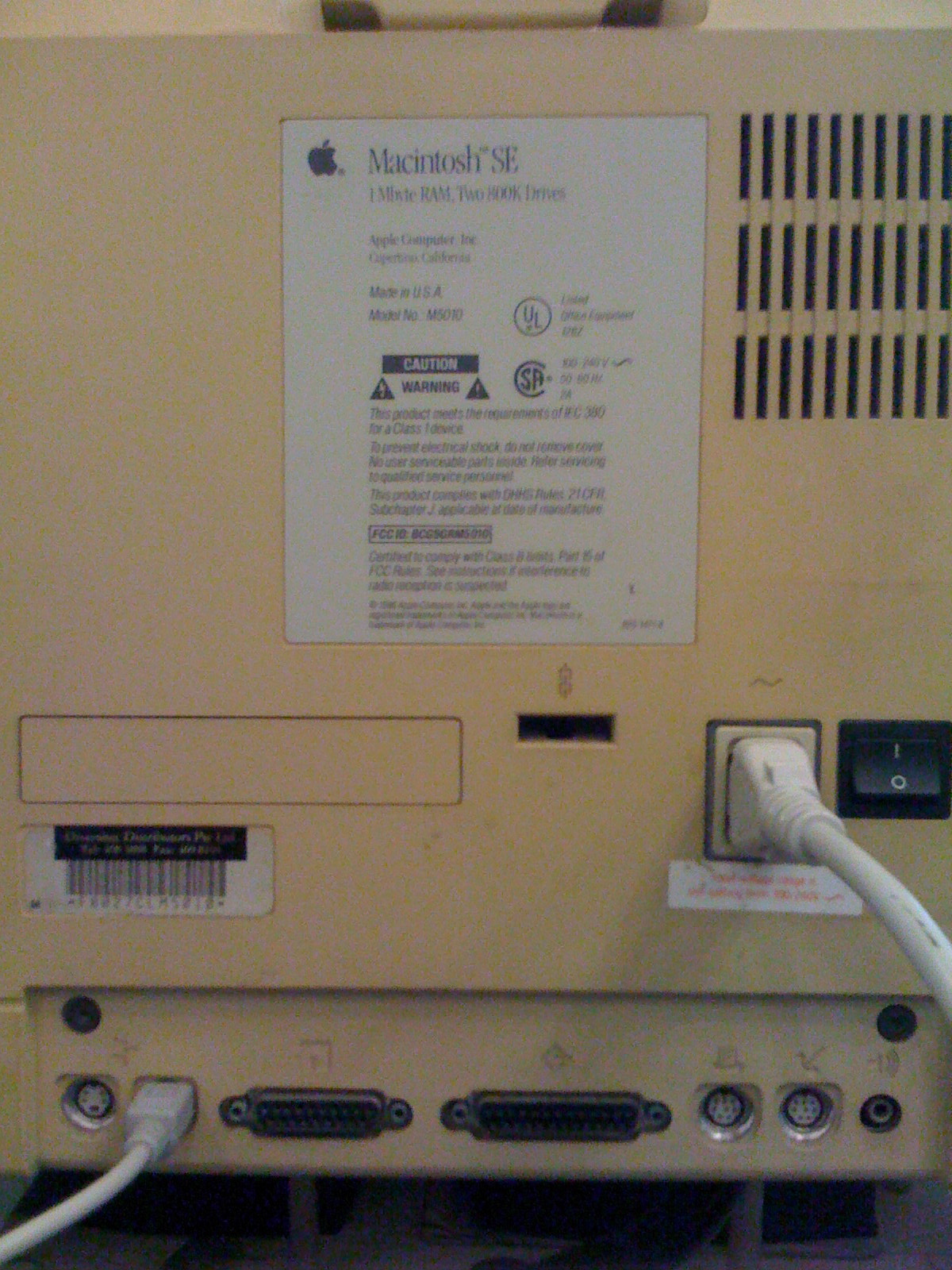
As I happily plugged in everything, I was disappointed to find that the rear of the macintosh read ‘Macintosh SE’. The specs on the rear sticker was 1 mb ram with two 800k floppy drives. My dream of owning an SE/30 was going to be a dream for a while longer.
Rear Case
This was a little puzzling. Could the macintosh have started life as an SE and later upgraded to a SE/30? After all, Apple did offer an upgrade for the original macintosh 128k and 512k. The upgrade kit consisted of an upgraded logicboard, floppy drive and a macintosh Plus rear case.
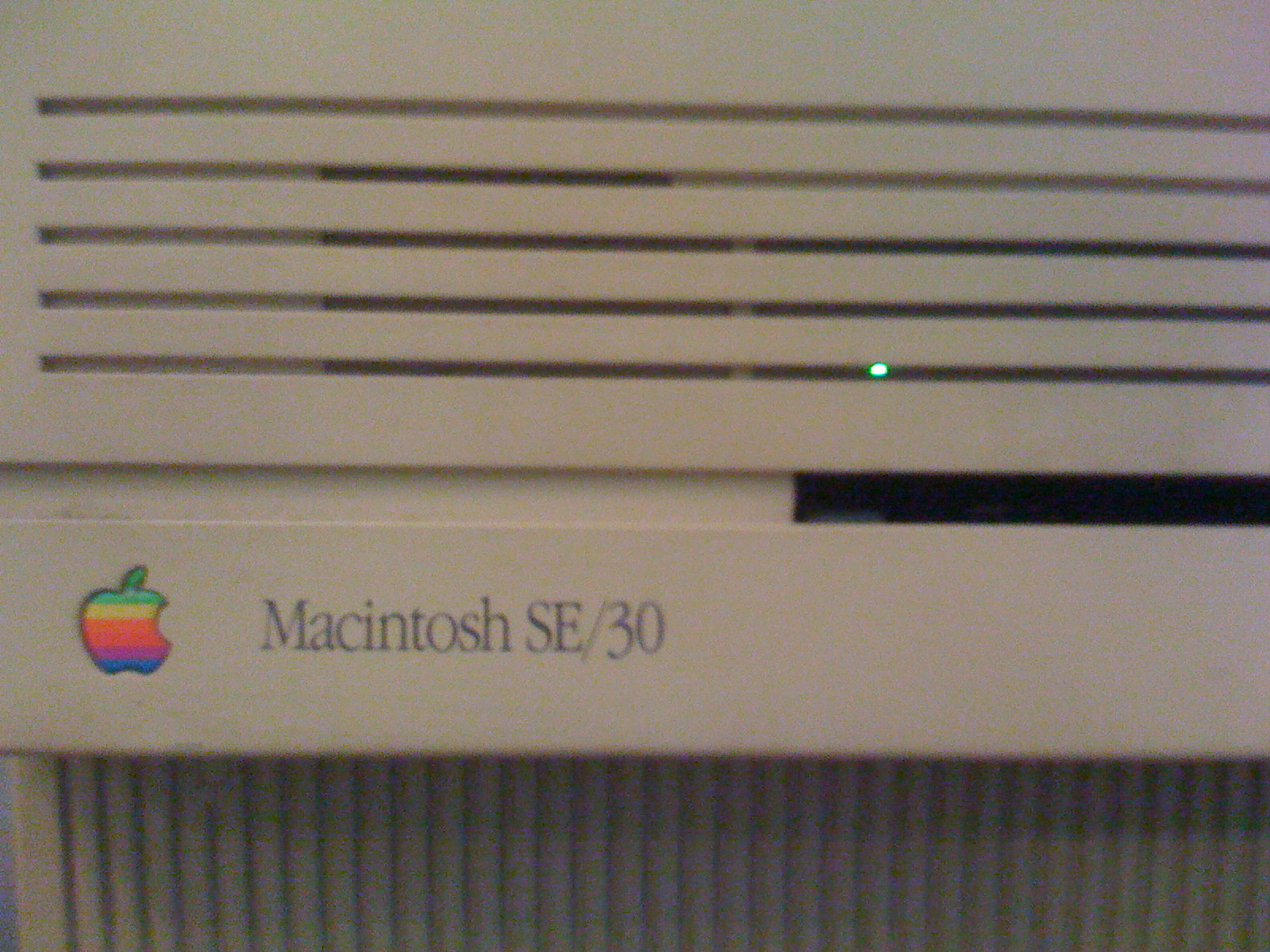
Blinking Light
The good news was that the Macintosh SE powered up to a blinking flopping icon. So at least it still kind of works. The screen is still bright and sharp but there are some vertical lines. Upon closer inspection, there was a little flashing green light through the front ventilation gaps. If this macintosh was upgraded with an internal hard drive than perhaps the hard drive is already faulty.
The next step will be to take it apart and have a look at what’s under the hood.