3rd Generation iPod Take Apart

Almost every Apple product is well detailed. From the external, there are no visible screws that hold the casing together.


To open the iPod, a thin plastic piece is used to pry the white plastic from the metal back. There are a few clips along the side and bottom. Places like Ebay and electronics shops may also stock iPod opening tools. I did not have one on hand and improvised with a swiss army knife. The case already has a few scratches and it looks like someone has attempted or opened this iPod before.
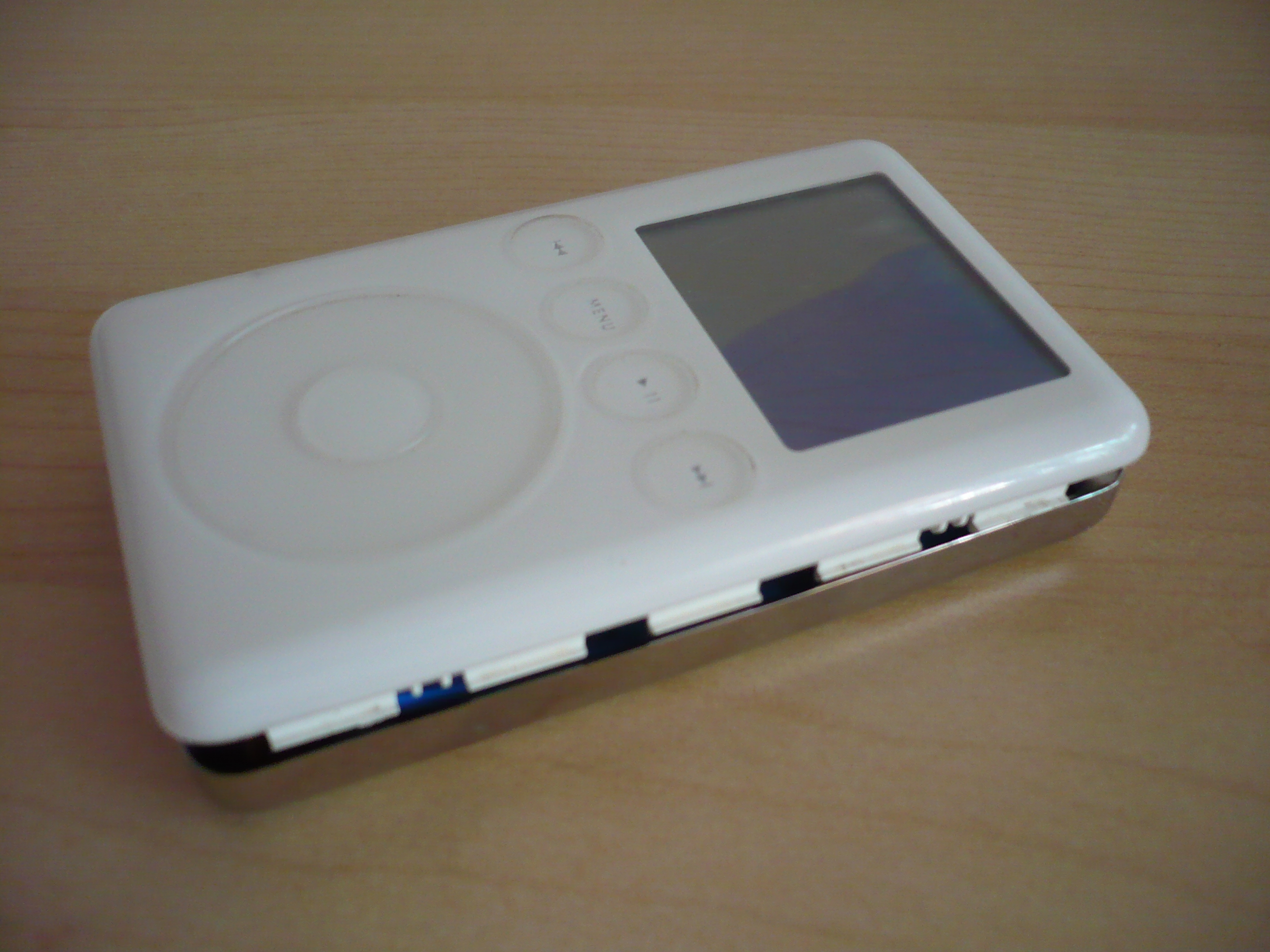


In the past when opening up a Mac Mini, I used an old ATM card. Someone suggested using a guitar pick as it is also a soft material and would leave major marks on the case. 

After prying the back metal case off, be careful as the audio connector is connected to both the back plate and the front bezel. The 1.8 inch hard disk takes up quite a bit of space. Below the hard disk is the circuit board and battery. 

There appears to be a liquid on the blue rubber gasket holding the hard disk and also on the circuit board. We thought it might have been the LCD but it looks like the battery is the culprit. The area around the LCD looks clean and dry though. As the LCD has cracked, we removed it to prevent more chemicals from spilling out. 
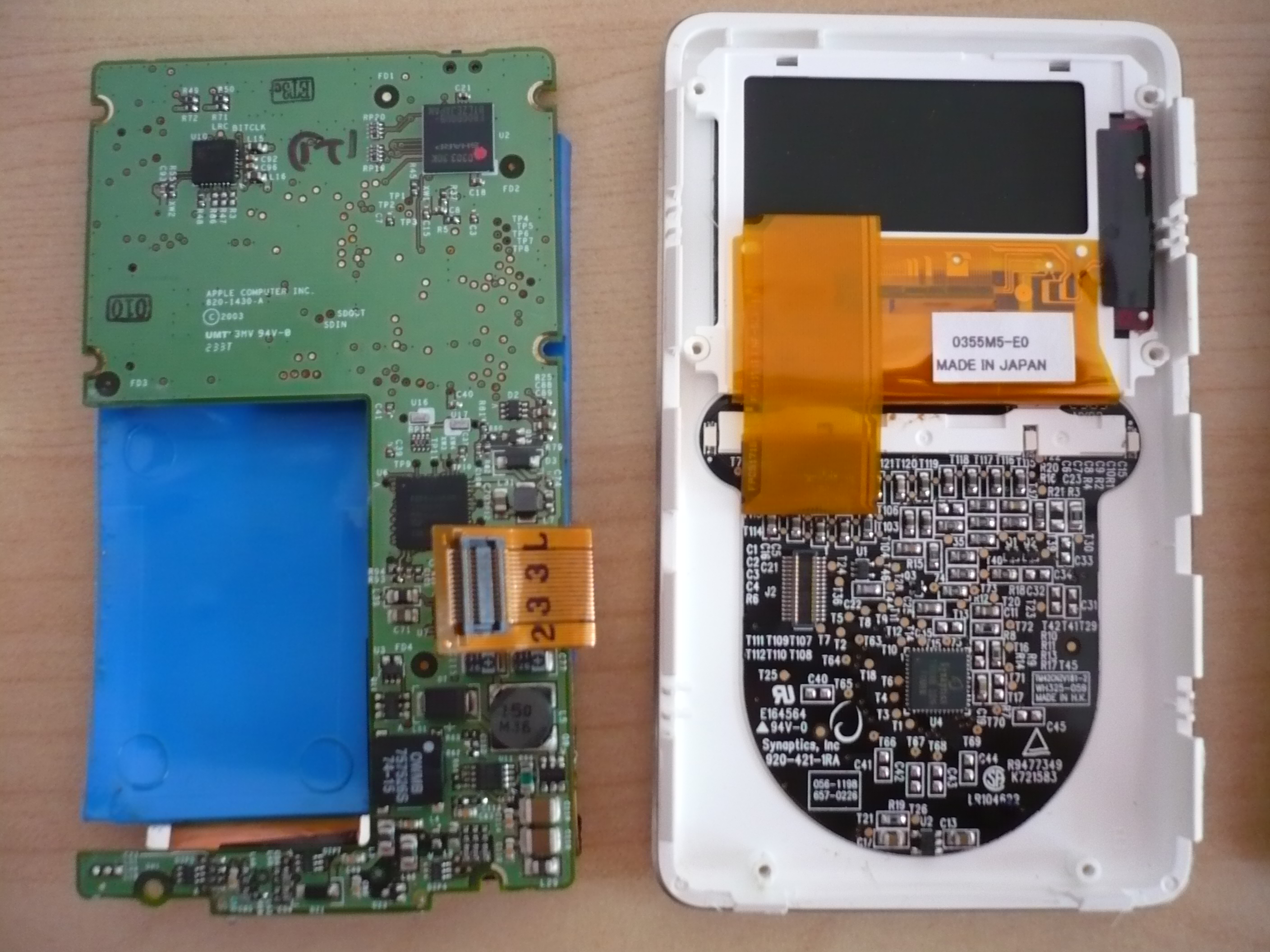
The battery and LCD is wrapped carefully and disposed off while the circuit board, back case and rubber gasket is dunked into a bowl of soapy water. We read someone before that a Compact Mac was saved this way. For now, the parts are being air dried.

We will try to put it back together next week. Any suggestions and ideas what to do with the casing if the iPod still refuses to work?
2nd & 3rd Generation iPods

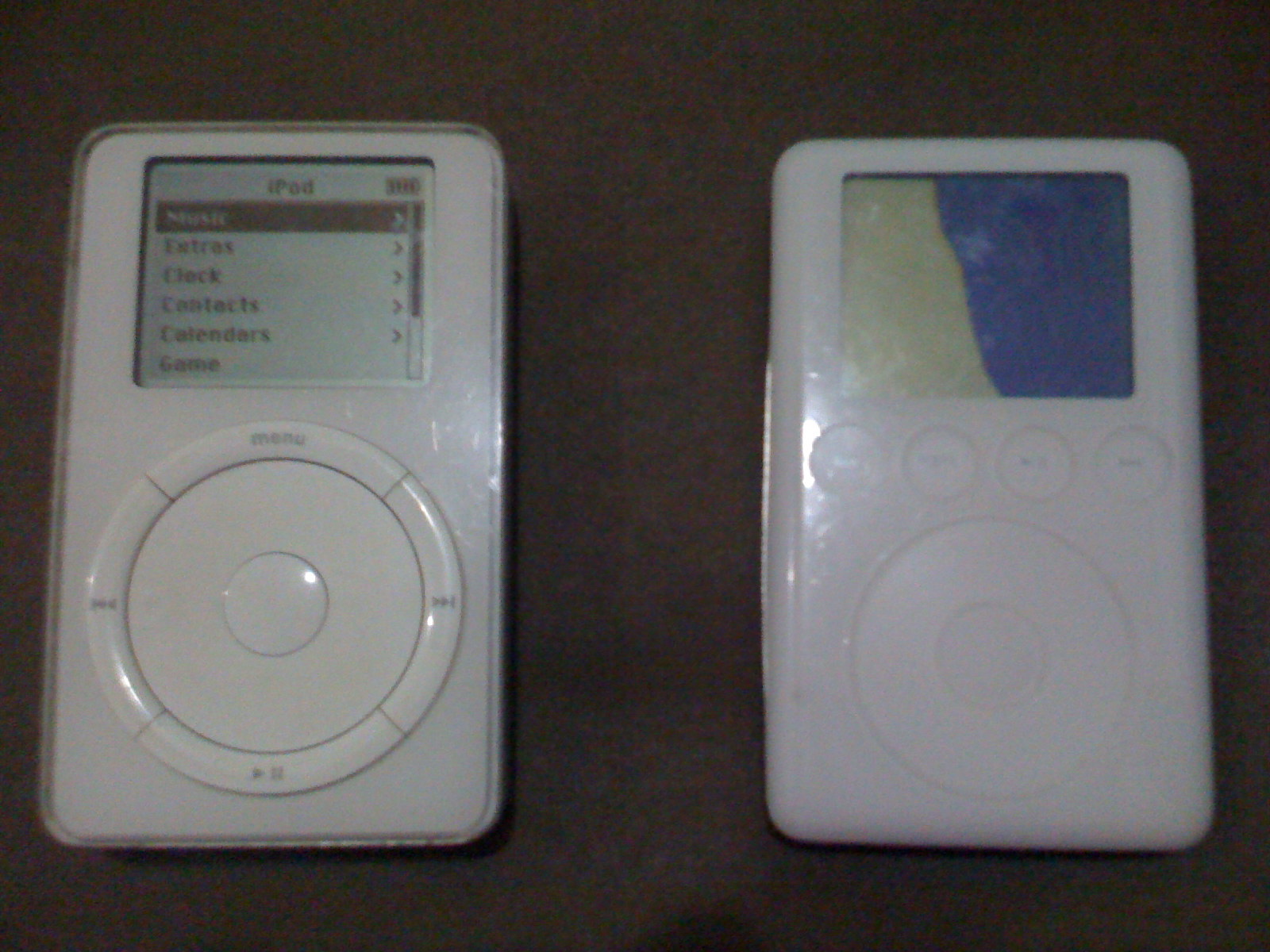
Today’s find is a pair of 2nd and 3rd generation iPods. 

The 2nd generation iPod was first released on 17th July 2002 in 10gb and 20gb capacities. The iPod in hand is the 20gb version. It is synced to iTunes through a firewire 400 cable. The form factor and design is similar to the original iPod except for a touch sensitive wheel.

Apple continued the transition to touch with the 3rd generation iPod. Not only was the wheel touch sensitive, all the 4 play, pause and forward buttons were touch sensitive. The 3rd generation iPod was launched on 28th April 2003 in 10, 15, 20, 30 and 40gb versions. A new dock connector was introduced with connection to a free USB or firewire 400 port on the computer.


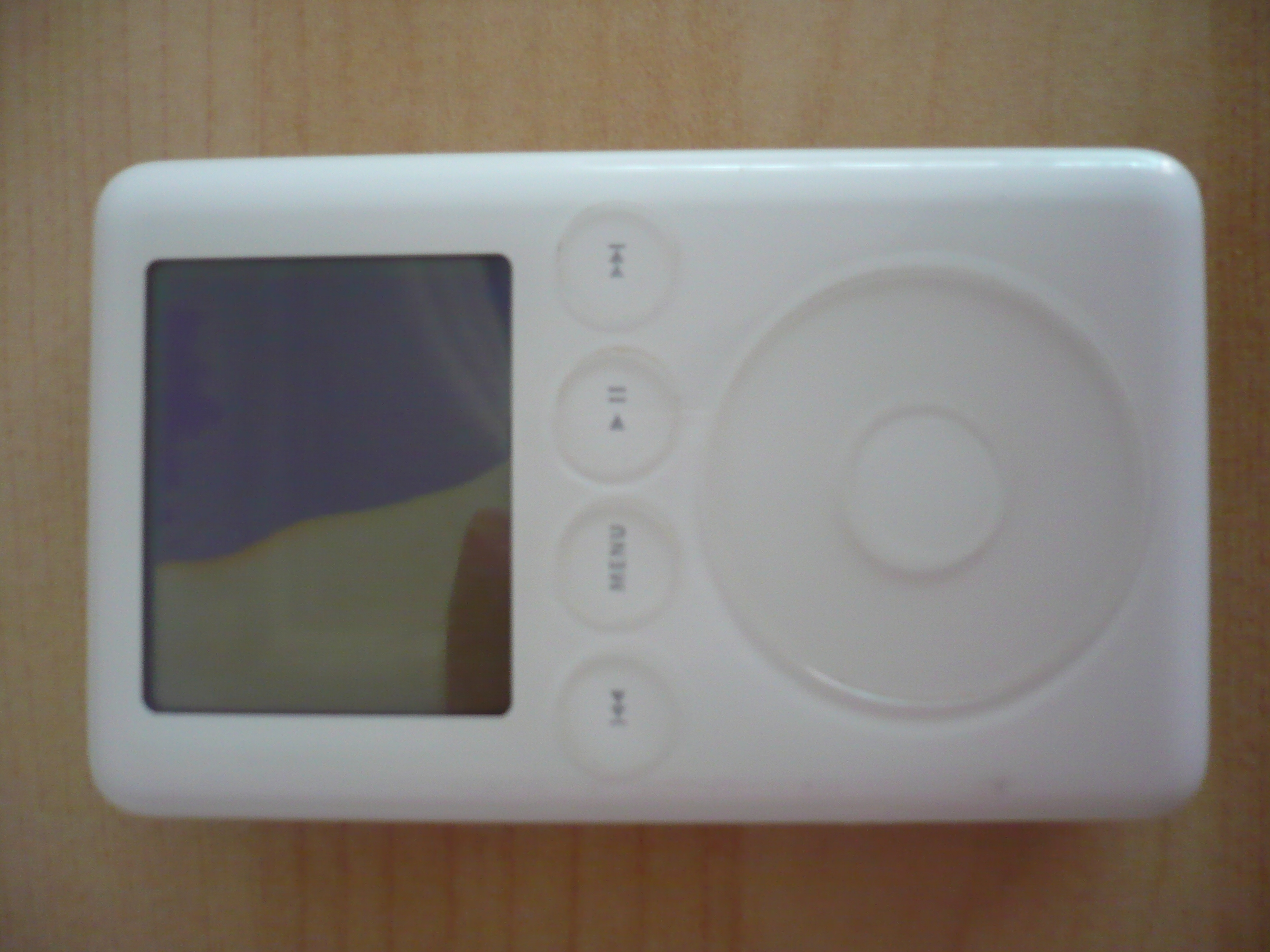
Our 2nd generation iPod has light scratches and a slightly faulty earphone port while the 3rd generation iPod has a cracked LCD screen. As the LCD has been broken for a long time, the liquid may have leaked and damaged the rest of the internals. It does not respond when plugged in at the moment.

Check back for updates as we take apart the 3rd generation iPod to see what’s inside.

5 steps to open TAM subwoofer/ powersupply

The following guide is based on information from the now defunct tam.axon.net forums for the 20th Anniversary Macintosh. Special thanks to Philippe for providing the information.

The TAM subwoofer is held together by the ‘cap’ on the top and screws below. Removing the screws at the bottom is the easy part. The ‘cap’ has to be gently pried out or the ‘legs’ holding it down will crack easily. You will need to find a suitable item to lift the ‘cap like a wooden spatula or screw drivers wrapped with insulation tape as I have done.

1. Flip the subwoofer upside down and rest it on the table. Remove the rubber strips by carefully peeling it out. It is held by double sided tape and should be easily removed. Be careful not to pull too fast for the rubber may have hardened over the years and snap.

2. The screws will now be visible. Remove the screws and sit the subwoofer the right side up.

3. Here comes the tricky part to remove the ‘cap’. It has to be lifted up evenly or the ‘legs’ holding it will break. I have used four screw drivers to pry it loose. Place a soft cloth to cushion the screw driver or it will leave marks on the rubber part of the subwoofer. Electrical insulation tape is wrapped around the screw driver tip to prevent scratching the ‘cap’.

4. With the ‘cap’ removed, the rubber piece can now be pulled off. It is held by double sided tape and should come off with a little force. Remove the screws that are now visible.

5. A helping hand may be required to hold the base of the subwoofer while you lift the case off.

Now that the case of the subwoofer has been removed, follow our next post to solve the buzzing/ humming issue.

*Photos will be available soon*

What causes the infamous buzzing/ humming issue on a TAM?

Many people have pointed the buzzing/ humming sound from the speakers are caused by a bad contact in the subwoofer.

Inside the subwoofer is a large connector where all the audio is routed. Overtime, the metal pins in this connector oxidise causing bad contact leading to the irritating hum.

Purchasing a new subwoofer solves the problem temporarily for in time, it will develope the same problem. After so many years, this part is no longer available from Apple and hard to come by.

Ever so often, people put up their TAM affected by the dreaded hum giving you a chance to pick up one inexpensively.

Don’t dispair if your beloved TAM is exhibiting this problem for it is not that difficult to resolve this problem by following the steps in our guide to take the subwoofer/ powersupply apart.

Virtual Vintage Macintosh

For people who do not have much storage space for old macintosh computers, there are alternative ways to experience older operating systems. 

Computers like the Apple Lisa are a good example where it is difficult to find one in working condition. When a limited run and hardware failing over time, creating an emulator is one of the best ways to preserve it.

Check out the following emulators for various Apple related operating systems. Click on the links below to download the emulation software. 

The people behind these projects are doing such a great job keeping the vintage OS alive. If we can’t get the Macintosh XL here at MacVintage.com working, the alternative is to put a Mac Mini inside the case and run the original OS through emulation.

Apple Pro Optical Mouse

While looking for a keyboard and mouse to test the newly acquired Macintosh SE/30, I came across a plastic bag filled with apple pro mouse. I bought these 7 spoilt apple pro mouse from ebay last year. 5 of them are the original first generation black color ones while the other 2 are white in color. 

When these mice were released in 2000, the design was just so beautiful. An elegant elliptical shape made of clear acrylic with a translucent black inner piece that emitted a little glow of red through the apple logo.

One white mice has been nursed back to health exhibiting a healthy red glow. It has since found a new home. After repairing the first mouse, the rest have been stored in a plastic bag on the shelf. 

A quick search on google revealed a mod turning the mouse into a belt buckle. Another person made a soap dish. My initial ideas were the following:

A. Remove the guts and replace with a generic wireless mouse internals.

B. Turn it into a torch light similar to those ‘pop’ lights.

C. Make a frame to hold all 7 mice to create a bedside lamp powered through a usb hub.

D. Modify the transparent shell to fit a mighty mouse

It has been awhile but maybe it’s time to revive this Mac Mod. I am inclined to go with option D to make a transparent mighty mouse. Anyone have a cheap wired or wireless mighty mouse for sale?  

Restoring a Macintosh SE/30 Part 2

Over the weekend, I had a closer look at the SE/30. As it did not come with any mouse or keyboard, I had to use a set from my PowerMac 8500 AV. Both computers use an ADB port keyboard and mouse.


Macintosh SE/30
Macintosh SE/30


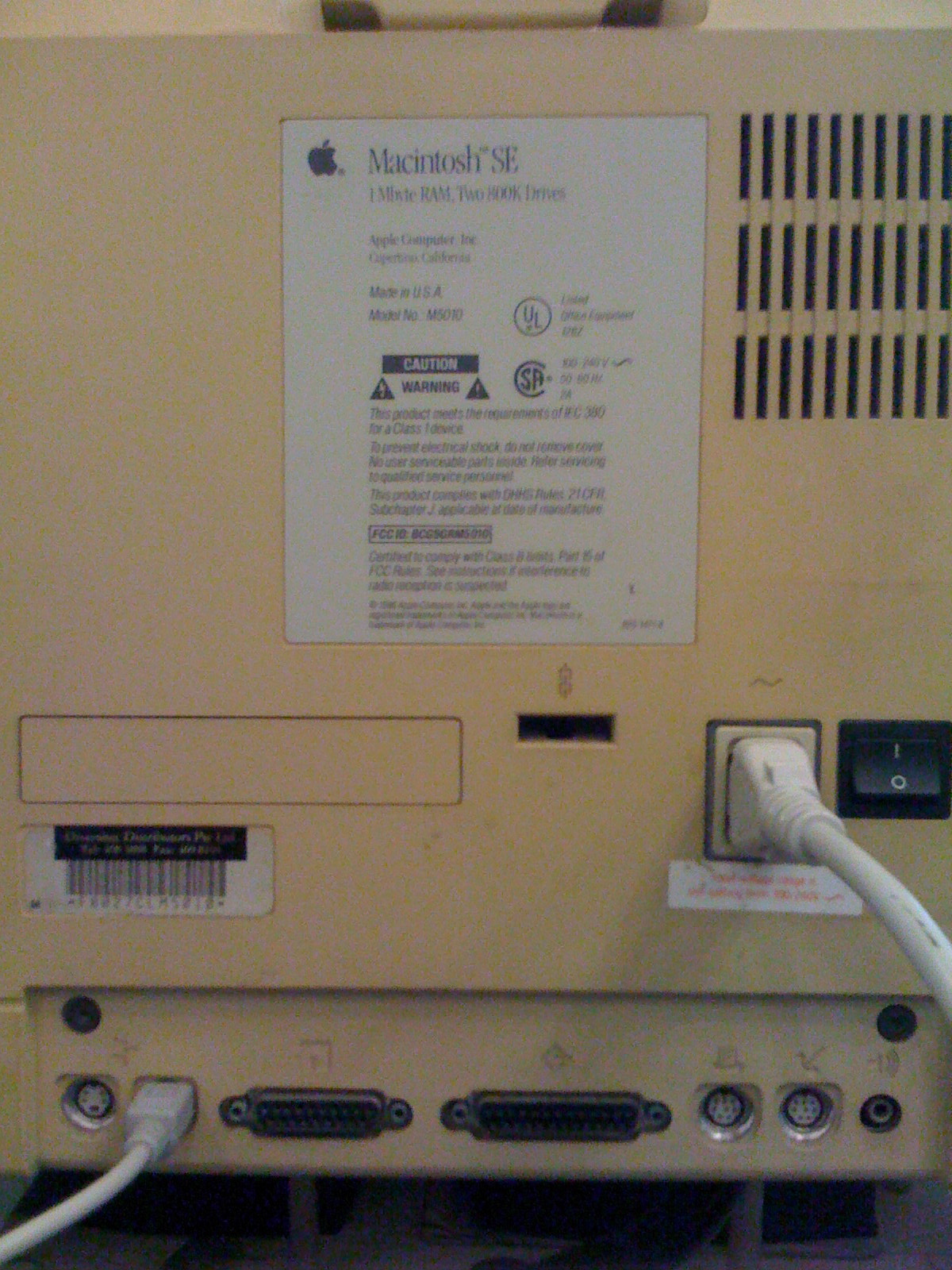
As I happily plugged in everything, I was disappointed to find that the rear of the macintosh read ‘Macintosh SE’. The specs on the rear sticker was 1 mb ram with two 800k floppy drives. My dream of owning an SE/30 was going to be a dream for a while longer.


Rear Case
Rear Case


This was a little puzzling. Could the macintosh have started life as an SE and later upgraded to a SE/30? After all, Apple did offer an upgrade for the original macintosh 128k and 512k. The upgrade kit consisted of an upgraded logicboard, floppy drive and a macintosh Plus rear case.  


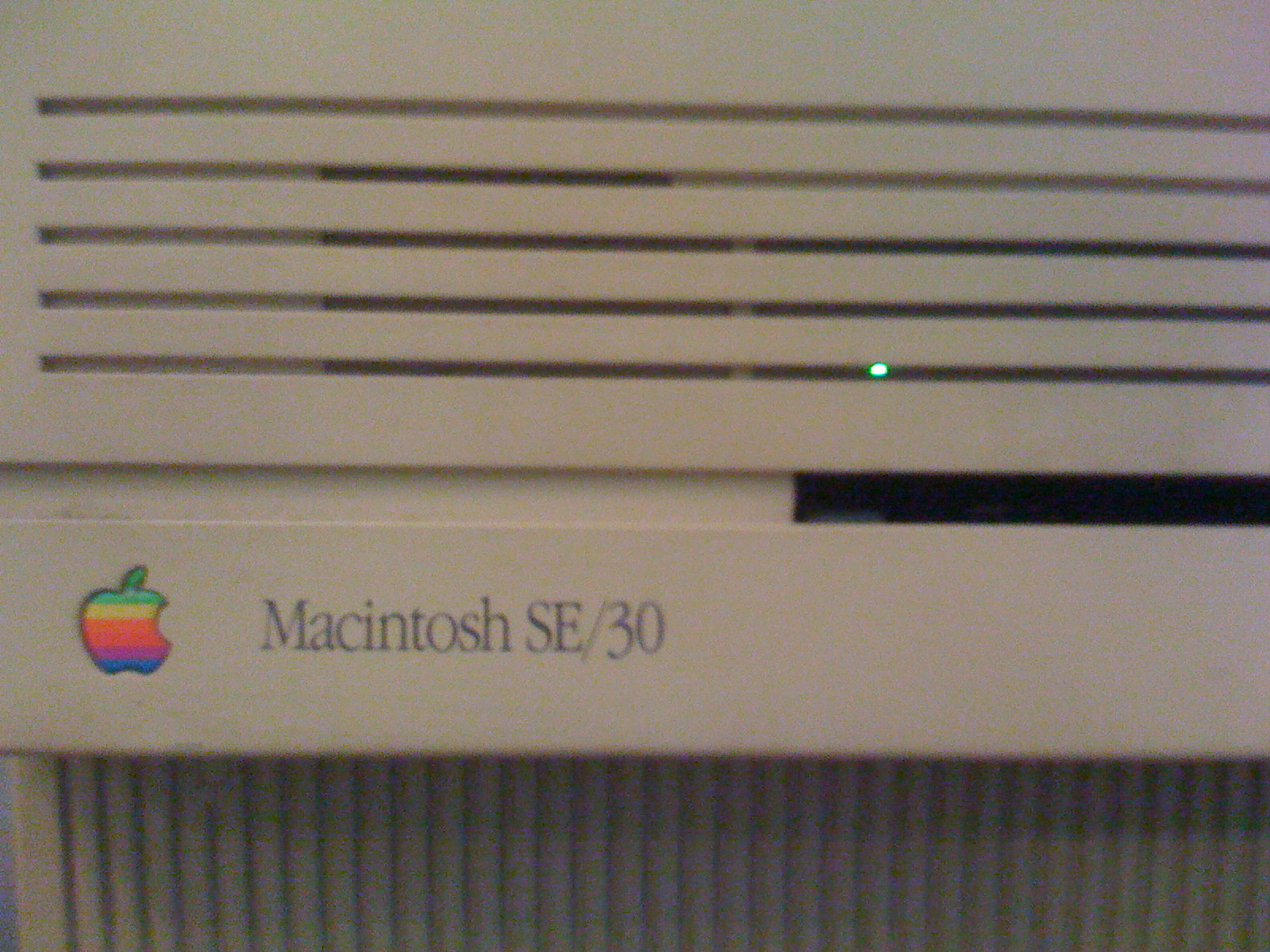
Blinking Light
Blinking Light


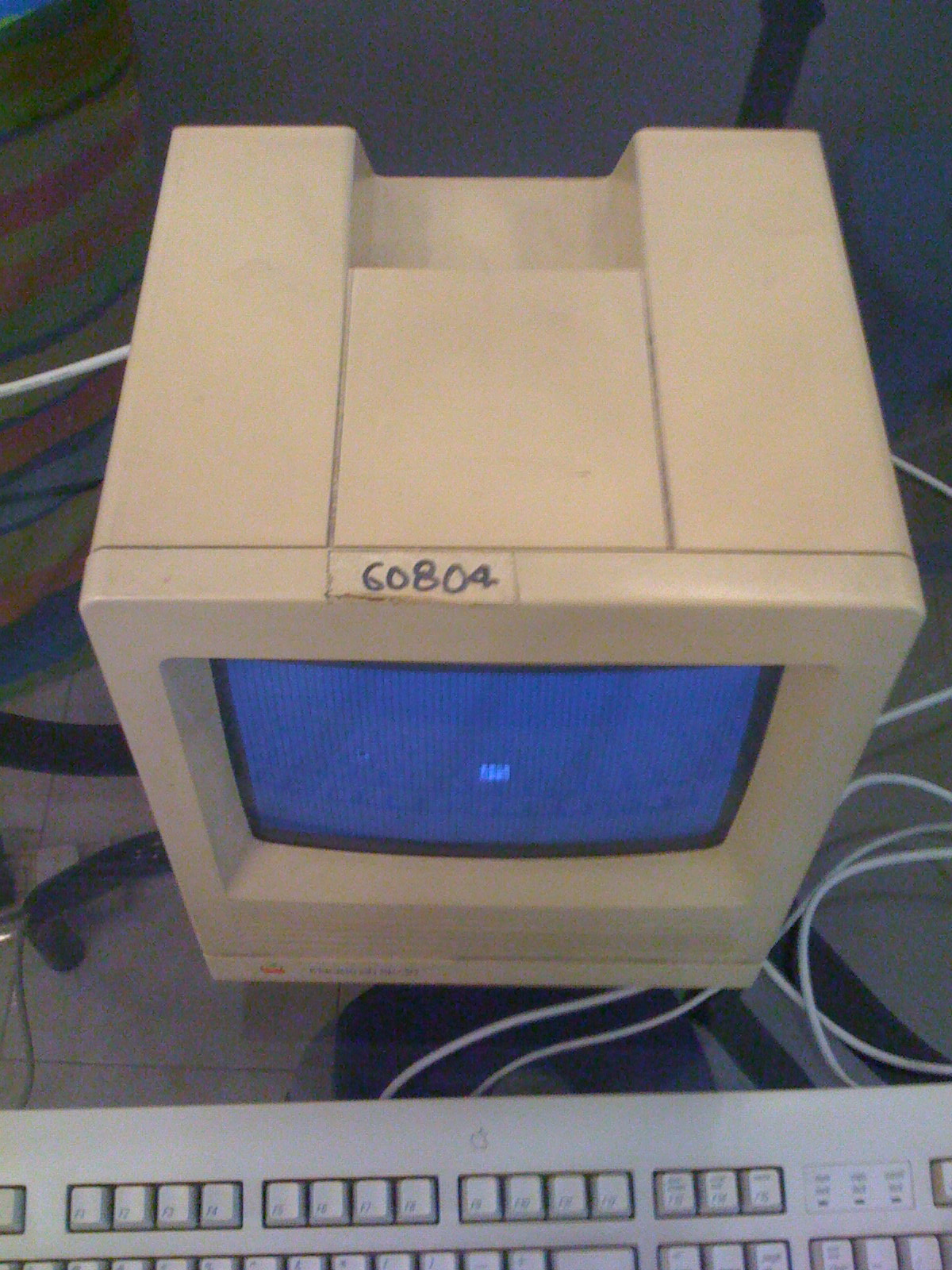
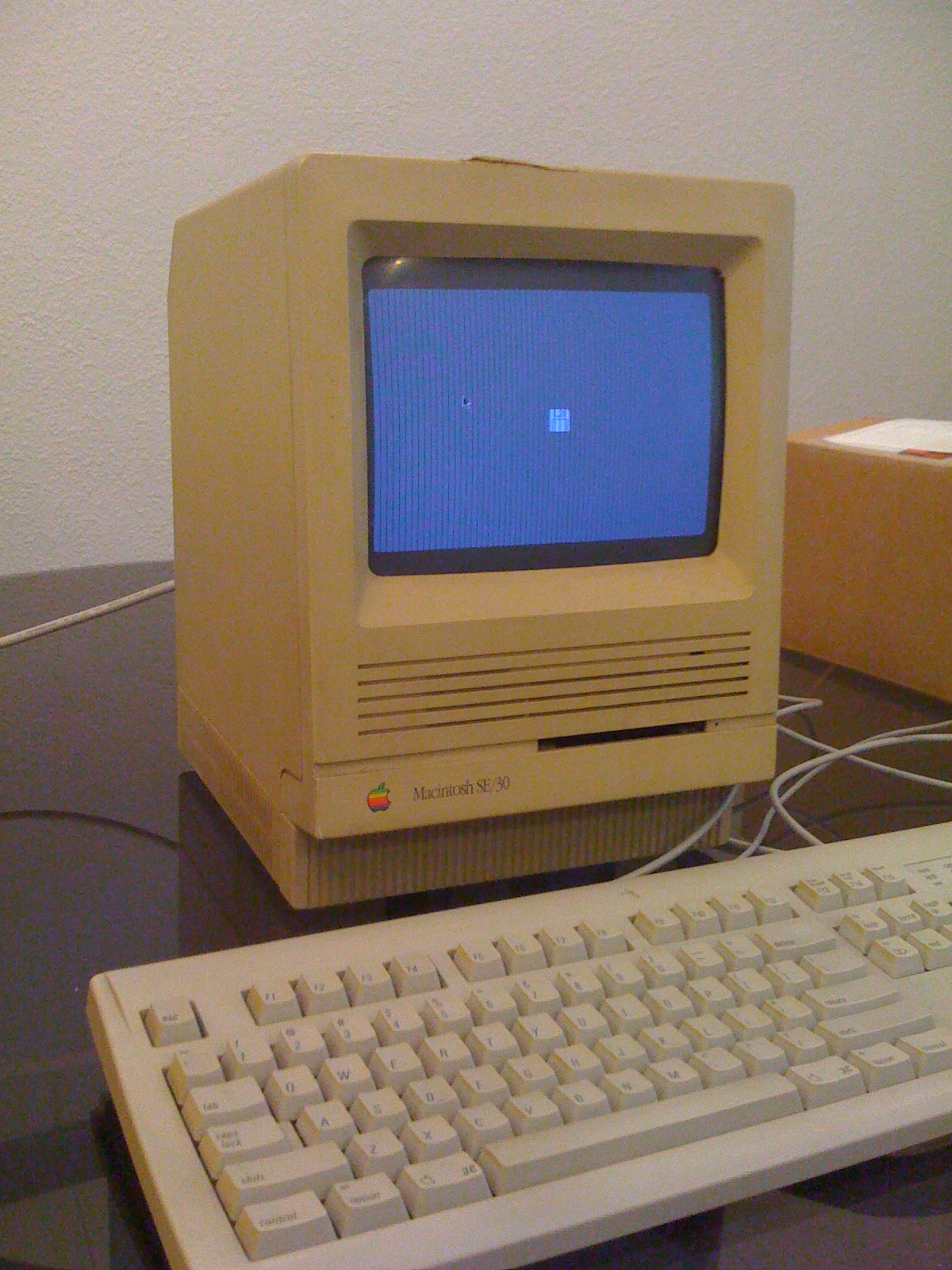
The good news was that the Macintosh SE powered up to a blinking flopping icon. So at least it still kind of works. The screen is still bright and sharp but there are some vertical lines. Upon closer inspection, there was a little flashing green light through the front ventilation gaps. If this macintosh was upgraded with an internal hard drive than perhaps the hard drive is already faulty. 


The next step will be to take it apart and have a look at what’s under the hood.

Using a Macintosh to Share Wireless Internet

My wireless router was faulty and it was the middle of the month. Pay day was still two weeks away. Instead of buying a new airport base station, I decided to use an iBook G3 clamshell to share the internet connection.

Almost all new macs come with an airport card. Even older hardware like G3 iBooks and iMacs are able to accept the original 802.11b airport card with a transfer speed of 11 mbps. Most broadband connections today average 2 mbps to 12 mbps. There are providers offering up to 100mbps but home users will never fully utilise it.

I tried to do a clean install of OS X Panther 10.3 but the CD-Rom drive was a little fussy and refused to read the disk properly. Not willing to give up, I decided to push on. The iBook G3 I had was the non firewire model. Thus it was impossible to reinstall the OS from another mac.  I took the iBook apart to extract the hard drive. A copy of OS X Tiger 10.4 was installed and the hard drive replaced.

After putting everything back together, the iBook booted up with that familiar sounding chime. In system preferences, there is an icon for sharing. Once in that preference pane, select share my connection from ethernet to airport. Click on the options to create a name for the wireless network and set a password. Next, start the interet sharing service and you will be surfing online from all the other computers around the house or office.

The iBook may be old but it is still serving a useful purpose acting as a wireless base station.

Macintosh SE/30 Profile

Launched on 19th January 1989, it was the most powerful of all the Compact Macintosh models. Inside the case was a 9 inch black and white screen with a 16 mhz 68030 processor, 1mb of ram, 40 mb hard drive and a 1.44mb floppy drive.

In those days, floppy disks came in SD (Single Sided), DS (Double Sided) and HS (High Density) formats. The storage size are 400 kb, 800kb and 1.44 mb respectively. The SE/30 had a Superdrive and could read all formats. It’s a great machine to copy data and troubleshoot older macs.

Internal hard drives came standard at 40 mb but there was an option to upgrade it to 80 mb. To replace or upgrade the drives, you will need to find one with a SCSI interface. The Macintosh SE/30 can take up to a large 3.5 inch half height SCSI drive. 

There were 8 ram slots allowing it to be upgraded to a gigantic 128 mb through 16 mb 30 pin SIMMs. For the system to access more than 8 mb of ram, you will need to install a software patch from Apple called Mode32. The reason for this was that the ROMs in the SE/30 contained 24-bit code thus rendering it impossible to run 32-bit applications.

Although this computer had a black and white screen, there was an expansion slot. The PDS slot had 120 pins allowing the option of adding a network card or colour graphics card. This expansion slot is different from that found in the Macintosh SE.

As one of the most upgradeble and powerful compact Macintosh, many were used as servers or workstations. It’s usability sure makes it a must have for every Mac collector.

Restoring a Macintosh SE/30 Part 1

After work, I rushed down to meet the person who was giving away the Macintosh SE/30. There were three different compact macs available. The other two were Macintosh Classics. I went for the SE/30 as it was the most powerful compact mac.

Upon arriving at the address, I was greeted by the three macs sitting in a row on top of the shoe cabinet. They looked so cute together. The previous owner said they had been in storage for quite a long time and two were still working the last time it was tested.


Macintosh SE/30
Macintosh SE/30


The shell of the SE/30 has turned yellow with age as compared to the two Classics which looked cleaner. There were also no power cords, mouse and keyboard. There is a little sticker at the top with some numbers. It was probably an asset number and this vintage mac must have started life in an office or institution.